It’s easy with Safe Surfer to install an effective porn blocker on a Sky Wi-Fi network. Along with protecting your privacy, we also use our own behind-the-scenes technology to block porn and other harmful online content. This guide will efficiently walk you through how to install protection.
If you get stuck, we’ve developed our protection apps to help.
Step 1: Install DNS
Make sure that you’re connected to your Sky Wi-Fi network, then open a web browser app and visit 192.168.1.1 to open the router dashboard. The username will be admin, and the password will be on a sticker on the bottom of the Sky Wi-Fi router (this is different to the Wi-Fi password).
Once you’ve logged in, click the Advanced tickbox at the upper-right corner.
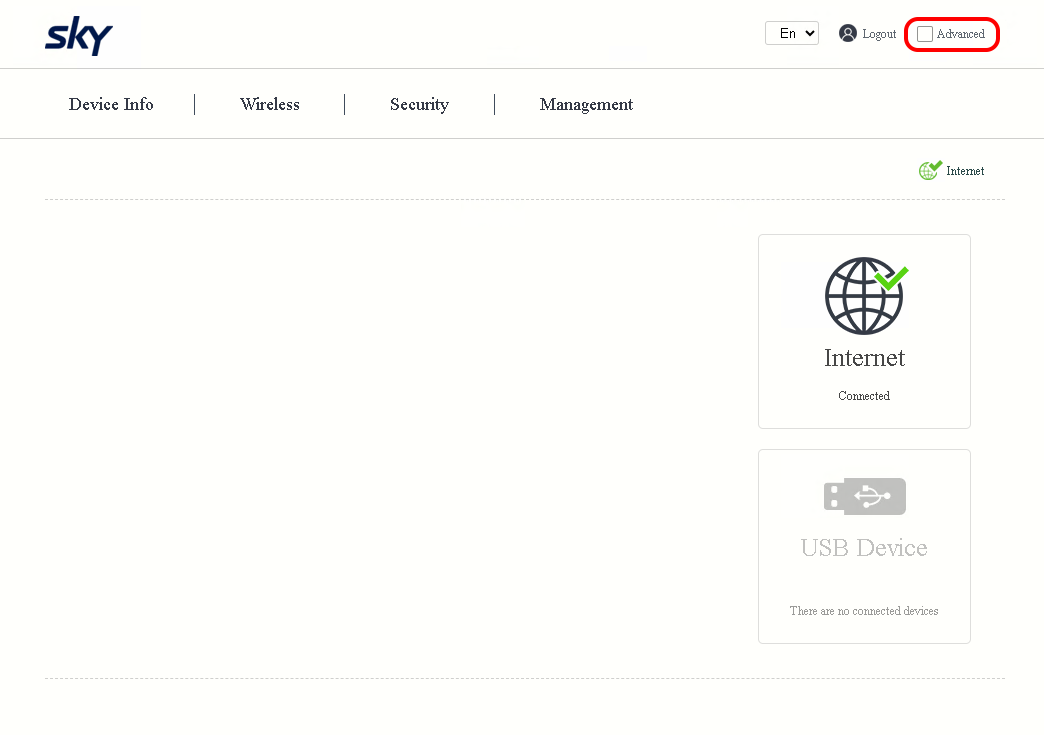
log_in_to_sky_router
Click the Network menu.
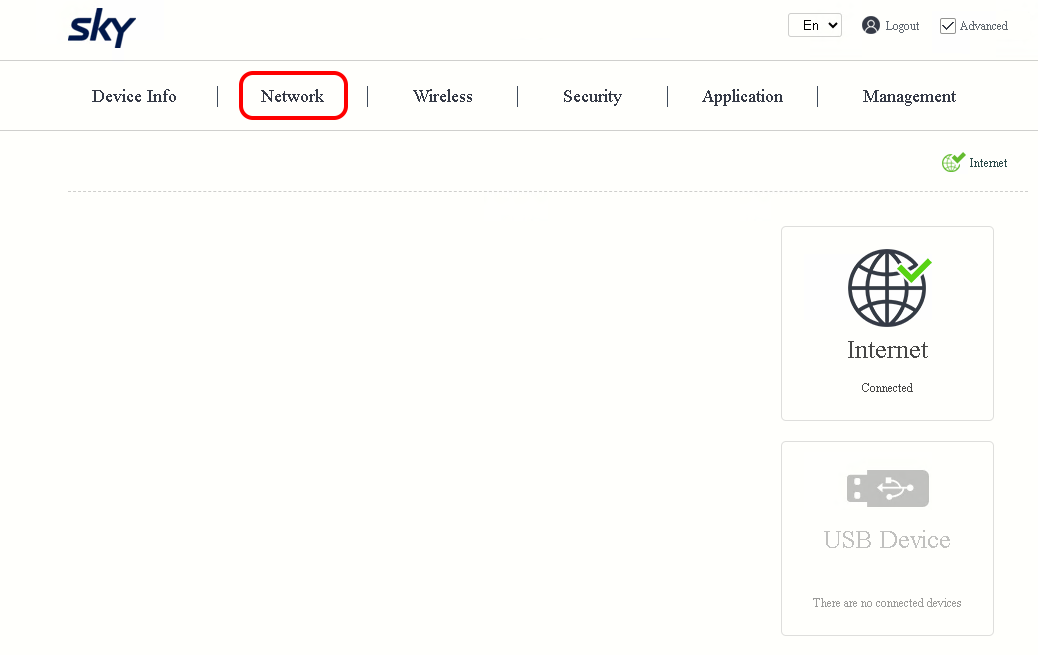
open_sky_network_settings
Click the LAN Setup menu.
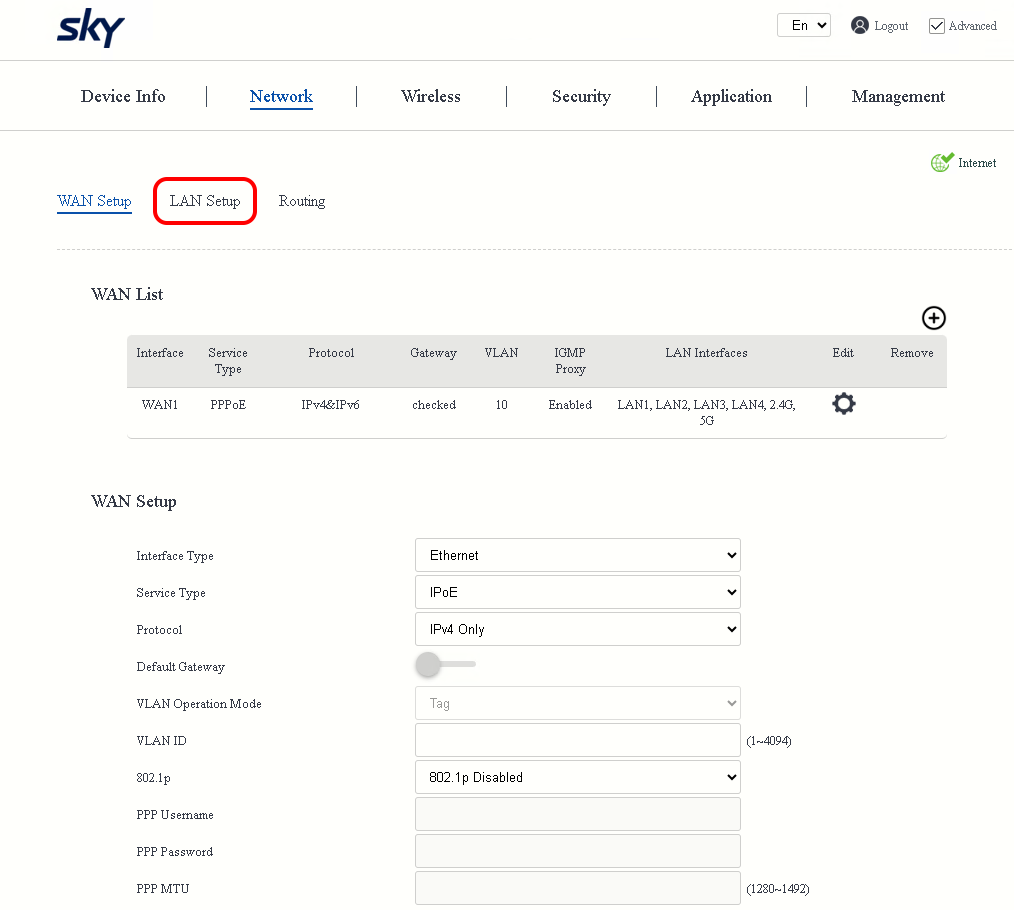
open_sky_lan_settings
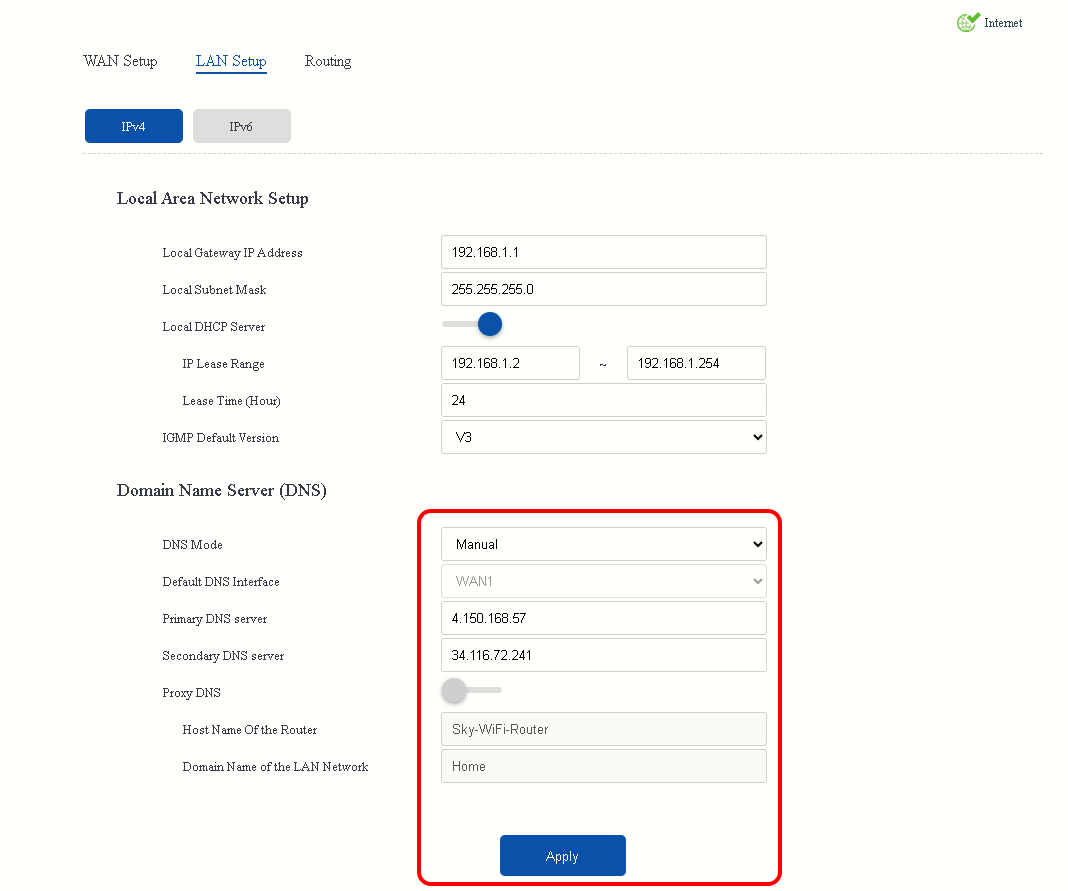
Set DNS mode to Manual, then copy and paste the following addresses into their respective fields:
- For Primary DNS server, use 4.150.168.57
- For Secondary DNS server, use 34.116.72.241
Once you’ve done this, click the Apply button.
Click the IPv6 menu.
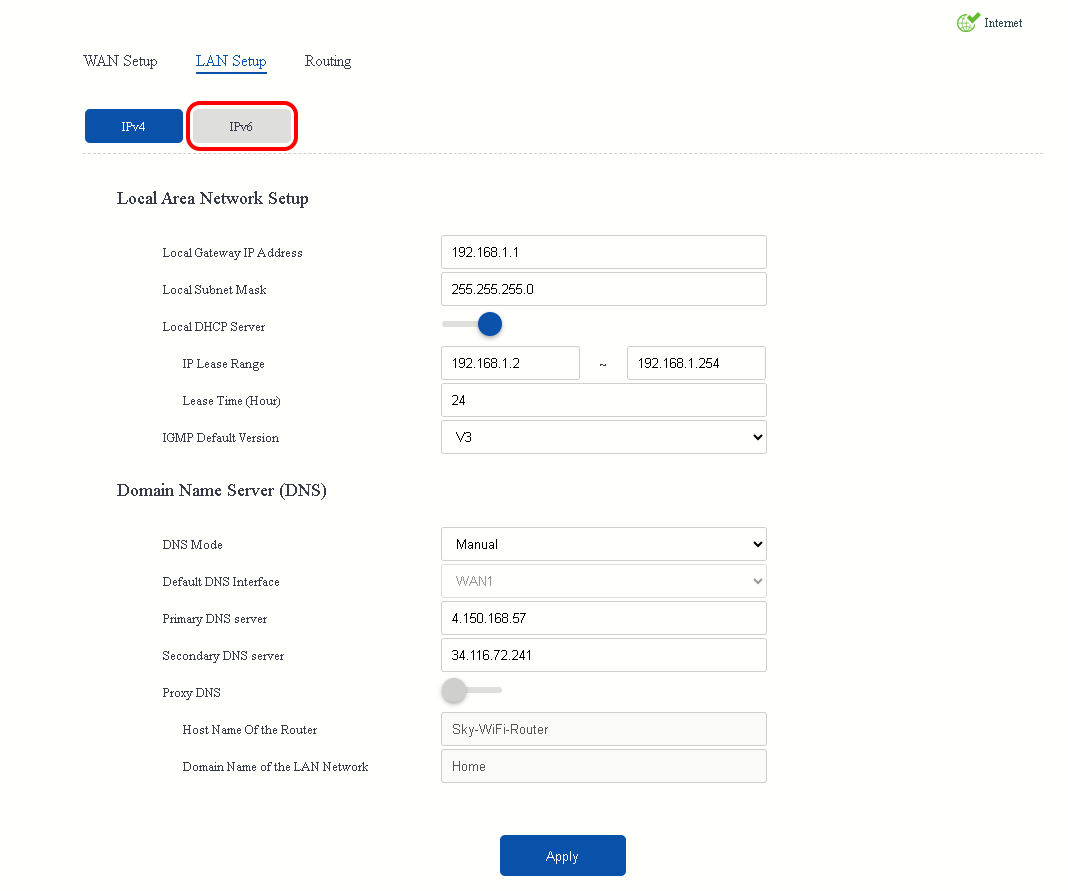
open_sky_ipv6_settings
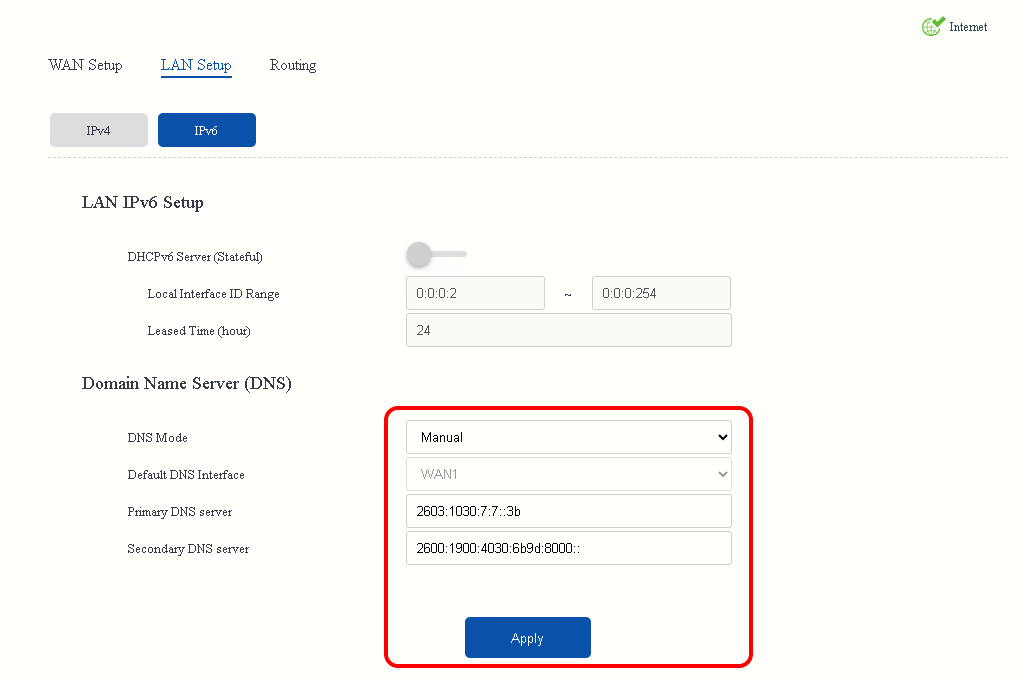
Set DNS mode to Manual, then copy and paste the following addresses into their respective fields:
- For Primary DNS server, use 2603:1030:7:7::3b
- For Secondary DNS server, use 2600:1900:4030:6b9d:8000::
Once you’ve done this, click the Apply button. Once the changes have saved, restart the applicable devices connected to your Sky Wi-Fi network.
Verify protection
Verify the protection installation by visiting ExampleAdultSite.com inside a browser app (such as Google Chrome, Microsoft Edge, or Safari). This is a safe website designated for testing if pornographic websites are being blocked. This site should be blocked. If we’re blocking something, you’ll usually see a blank connection error page.
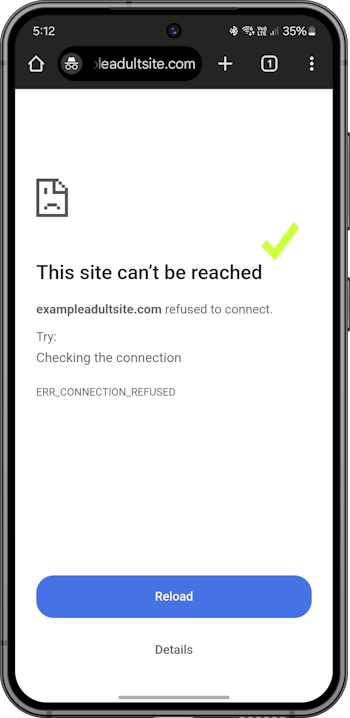
verify_safe_surfer_filtering
If you have any Apple devices (that is, iPhones, iPads, or Macs), you will also need to enable the Limit Adult Websites setting on those devices to disable the Private Browsing Mode feature for Safari. This feature ignores the Safe Surfer filtering received from your home router. You can find out how to fix this as follows:
- For each iPhone and iPad device, navigate to the Settings app > Screen Time > Content & Privacy Restrictions (and enable this feature if it’s not already turned on) > App Store, Media, Web & Games (on older devices, this menu is called Content Restrictions) > Web Content > set to Limit Adult Websites. Once you’re done, navigate back to the Screen Time main menu, which will save the changes.
- For each Mac device, navigate to the System Settings app > Screen Time > Content & Privacy (and enable this feature if it’s not already turned on) > App Store, Media, Web & Games (on older devices, this menu is called Content Restrictions) > under Web Content, set Access to Web Content to Limit Adult Websites, then click the Done button at the lower-right corner. Once you’re done, navigate back to the Screen Time main menu, which will save the changes. Open the Safari app > click the Safari text on the left-hand side of the menu bar (at the top of the screen) > click the Quit option. Repeat this process for every user account on the Mac.
Get protection apps for best parental controls experience
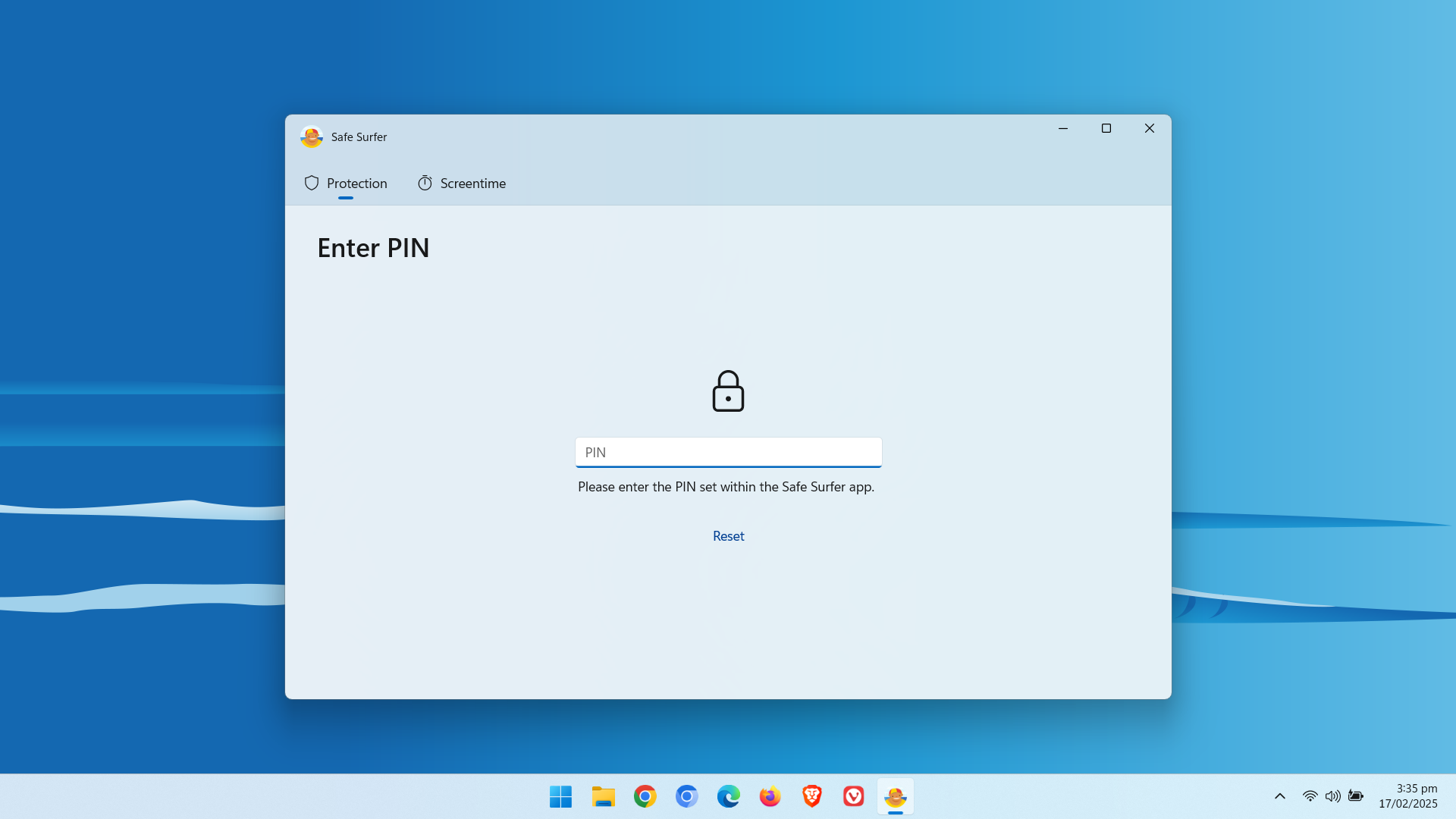
Check out our protection apps! Our custom-built apps feature our best technology. They install protection directly onto devices (Android, iPhone and iPad, Windows, Mac, and Chromebook), and are a great way to block porn and apps for devices on the go. The apps enable you to set custom block settings and monitor the online activity of your loved ones. We can also prevent protection from being uninstalled (and block filter workarounds) in various cases.
Protection complete
Great work! The devices connected to your Nokia Wi-Fi network should now be protected. Want more options over what content can be accessed? Check out the app solutions available on our easy-to-use online dashboard.
If you would like to protect a different kind of device, visit our Guides page.
Disclaimer: Safe Surfer Limited is in no way associated with Sky Network Television Limited.